
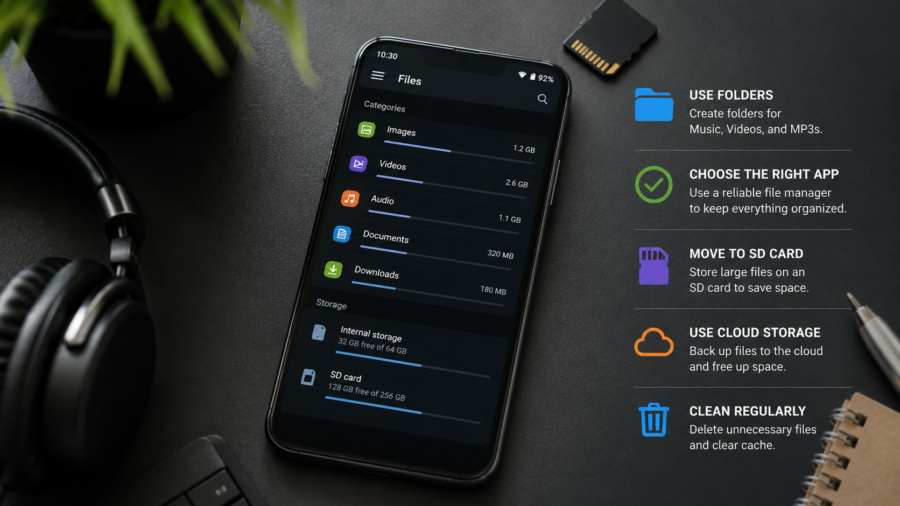
Music, video and MP3 files can make an Android phone feel messy very quickly.
One day, your downloads folder looks manageable. A few weeks later, it may be full of duplicate songs, random video clips, old audio files, unfinished downloads and files with names you no longer recognize.
This is not only annoying. It can also make your phone feel slower, reduce available storage and make it harder to find the media you actually want.
The good news is that organizing media files on Android does not need to be complicated.
You do not need a perfect system. You just need a simple routine: know where your files are saved, name them clearly, delete what you no longer need and use apps that make your library easier to manage.
Why Android Media Files Get Messy So Fast
Android gives users a lot of flexibility.
That is useful because you can download files, move media between folders, use different music players, save videos for offline access and manage files more directly than on some other platforms.
But flexibility can also create clutter.
Different apps may save files in different places. Some media may go to Downloads. Some may go to Music. Some may appear in Movies, Audio, Documents or app-specific folders. If you use several apps for music, video, editing or file sharing, your media library can become scattered.
File names are another problem.
A song, podcast, voice recording or converted MP3 may arrive with a long, confusing name. If you do not rename or sort it, finding it later becomes harder.
Over time, the real issue is not only storage. It is control.
A clean media library helps you know what is on your phone and why it is there.
Start With the Downloads Folder
The Downloads folder is usually the best place to start.
For many Android users, this is where random files pile up first. It may include music, videos, PDFs, images, temporary files, old installers and files you only needed once.
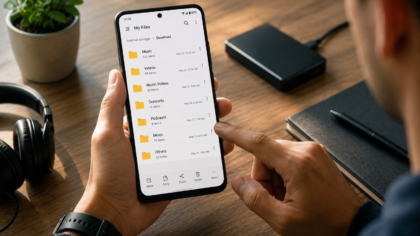
Open your file manager or Files app and review the Downloads folder carefully.
Do not delete everything blindly. Instead, look for files you recognize and files you no longer need. Move important music or video files into clearer folders. Delete failed downloads, duplicates and old files that no longer matter.
This one step can make your phone easier to understand.
A messy Downloads folder is like a messy desk. It may not break anything, but it makes every task feel harder.
Create Simple Folders for Media
A good folder system does not need to be complex.
In most cases, a few clear folders are enough:
Music
Videos
Podcasts
Voice Notes
Converted MP3
Saved Clips
Old Media
The goal is not to build a perfect archive. The goal is to stop everything from living in one crowded folder.
If you often save or convert media files, a dedicated folder can help. For example, keeping converted MP3 files separate from original downloads makes cleanup easier later.
You can also organize by purpose.
A folder for workouts, road trips, study audio or offline travel media may be more useful than a folder with hundreds of mixed files.
Choose a system that matches how you actually use your phone.
Rename Files You Want to Keep
File names matter more than people think.
A file called “audio_2026_06_07_final_new_3.mp3” may be technically accurate, but it is not helpful when you are trying to find it quickly.
For files you plan to keep, use clear names.
A good name might include the artist, title, topic, date or purpose. For example:
artist-song-title.mp3
road-trip-playlist-june.mp3
language-lesson-03.mp3
family-video-beach-trip.mp4
You do not need to rename every file on your phone. That would be exhausting. Focus on files that are important, reusable or hard to identify.
A few seconds of renaming can save a lot of searching later.
Watch Out for Duplicate Files
Duplicate media files are one of the easiest ways to waste storage.
This often happens when you download the same file twice, move media between apps, convert a file and keep both versions, or receive the same video through different messaging apps.
Duplicates are not always obvious because file names may be slightly different.
Look for repeated songs, similar video lengths, matching thumbnails or files with names ending in numbers such as “copy,” “1” or “2.”
Before deleting duplicates, make sure you are keeping the best version. A converted MP3 may be smaller but lower quality. A video copy may be compressed. If quality matters, open the files before removing one.
A monthly duplicate check can prevent storage problems before they become frustrating.
Be Careful With Converted Files
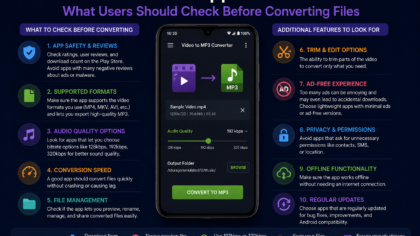
Converting media can be useful, especially when you want audio-only files, smaller file sizes or a format that works better in your preferred player.
But converted files can also create clutter.
If you convert a video to MP3, you may end up with both the original video and the new audio file. That may be exactly what you want. Or it may be wasting space.
After converting, decide what you actually need.
If the original file is no longer useful, delete it. If you want to keep both versions, place them in separate folders so they do not confuse your media library.
Also be careful with copyright and permissions. Only save, convert or organize media you are allowed to use. A media organizer or player should help you manage authorized files, not encourage unsafe or illegal downloading.
Use a Media Player That Finds Files Clearly
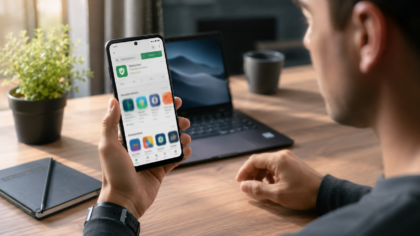
A good media player can make a messy library easier to use, but it should not be your only organization system.
Some music and video apps scan your device and show all supported files automatically. This is convenient, but it can also reveal clutter from folders you forgot about.
If your player shows random clips, voice notes or old downloads, that is usually a sign that your folder structure needs cleanup.
Look for apps that make it easy to browse by folder, playlist, title or media type. A useful app should help you find what you want without forcing you to scroll through everything on the device.
The best media app is not always the one with the most features. It is the one that makes your own files easier to control.
Keep Offline Media Under Control
Offline media is helpful when traveling, commuting or using limited mobile data.
But it can quickly fill your phone.
Videos are especially heavy. A few large files can take more space than hundreds of songs. If you save videos for offline use, review them after you watch them.
Ask yourself:
Do I still need this video?
Will I watch it again?
Is it saved somewhere else?
Can I delete the original after conversion?
Is there a smaller version that works just as well?
Offline media should be useful, not permanent by default.
A simple rule helps: if you saved a file for a trip, class, workout or temporary project, delete it when that purpose is over.
Check Storage Before It Becomes a Problem
Do not wait until your phone says storage is almost full.
When storage gets too low, your phone may struggle with app updates, camera use, downloads and general performance. It is better to clean up before the warning appears.
Check storage settings regularly. Android can show which categories use the most space, such as apps, photos, videos, audio and system files.
If videos are taking the most space, start there. If audio files are the issue, review old music, podcasts or converted files. If apps are the problem, remove apps you no longer use.
Storage cleanup works best when it is targeted.
Deleting random small files may not help much if one folder contains several large videos.
Back Up Important Media
Before deleting large amounts of media, think about backup.
Some files are easy to replace. Others are not.
Personal videos, voice recordings, original audio projects and rare files should be backed up before cleanup. You can use cloud storage, a computer, an external drive or another trusted backup method.
A good backup routine reduces fear.
When you know important files are safe, it becomes easier to clean your phone without worrying that you deleted something valuable.
However, backup is not the same as hoarding. If you back up every random file forever, you simply move the mess to another place.
Back up what matters. Delete what does not.
Build a Simple Monthly Cleanup Habit
The easiest way to keep Android media organized is to make cleanup a small habit.
Once a month, spend ten minutes checking:
Downloads
Music
Videos
Converted files
Large files
Duplicate files
Old offline media
You do not need to reorganize your entire phone every time. Just remove obvious clutter and move important files into the right folders.
Small cleanup sessions are better than waiting until your phone is full.
A phone that stays organized is easier to use, easier to back up and easier to enjoy.
Final Takeaway
Organizing music, video and MP3 files on Android is mostly about simple habits.
Start with the Downloads folder. Create clear media folders. Rename files you want to keep. Remove duplicates. Be careful with converted files. Delete offline media when you no longer need it. Back up important personal files before cleaning.
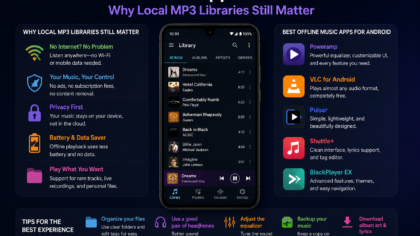
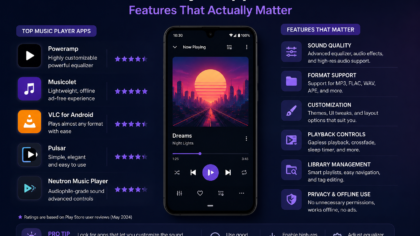
Apps can help, especially media players and file managers, but the best system is the one you can actually maintain.
A clean media library does not need to be perfect. It just needs to make sense to you.
When your files are organized, your music, videos and MP3s become easier to find, easier to play and much less likely to fill your phone at the worst possible time.
Comments
You can write your views about this story. Comments may be moderated according to site settings.