
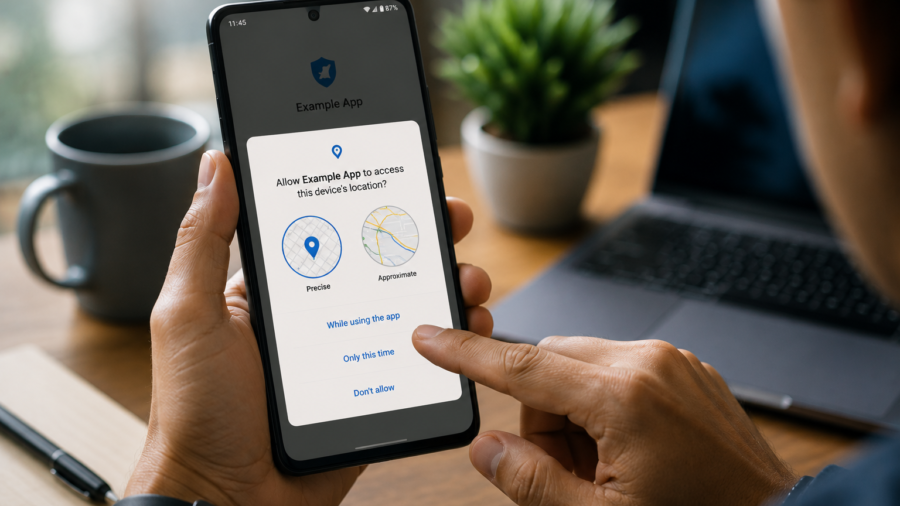
App permissions are easy to ignore.
An app opens, a pop-up appears, and the fastest option is to tap Allow so you can keep going. But that small decision can give an app access to your camera, microphone, location, photos, contacts, notifications or files.
Sometimes that access makes sense.
A camera app needs the camera. A map app may need location. A voice recorder needs the microphone. A music player may need access to audio files. But not every permission request deserves automatic approval.
The safest habit is simple: pause before tapping Allow.
You do not need to be a security expert. You only need to ask whether the permission matches what the app is supposed to do.
Why App Permissions Matter
Permissions control what an app can access on your phone.
They are not just technical settings. They affect privacy, security and how much control you give to an app.
If a weather app asks for location, that may make sense if you want local forecasts. If a wallpaper app asks for microphone access, that should make you stop and think. If a simple calculator asks for contacts, there should be a very clear reason.
Permissions are not always dangerous by themselves. The issue is whether the permission is necessary and whether you trust the app using it.
A good app should ask for access only when it needs it and explain why.
Start With the App’s Purpose
Before allowing any permission, think about the app’s main job.
What does the app actually do?
A navigation app may need location. A messaging app may need contacts, camera and microphone if you use calls or media sharing. A photo editor may need access to photos. A music player may need access to audio files.
But the request should match the feature.
If the app asks for a permission before you use the related feature, you can often deny it and allow it later if needed.
For example, a shopping app may not need camera access until you use barcode scanning. A social app may not need microphone access until you record a video. A notes app may not need file access unless you attach a document.
Do not approve permissions just because they appear.
Understand Common Android Permissions
Some Android permissions are more sensitive than others.
Location permission can let an app know where you are. Some apps need this for maps, delivery, weather or local search. But many apps do not need exact location all the time.
Camera permission lets an app use your camera. This is normal for camera apps, video calls, scanning apps and photo features.
Microphone permission lets an app record audio. It is expected for voice recording, video calls and voice notes, but it should not be requested by unrelated apps.
Photos, videos and file permissions can let an app view or manage media on your device. This may be needed for gallery apps, file managers, video editors and music apps.
Contacts permission lets an app access your saved contacts. This can be useful for messaging apps, but it is sensitive.
Notification permission controls whether an app can send notifications. This may sound harmless, but too many notification permissions can make your phone noisy and distracting.
The more sensitive the permission, the more carefully you should think before allowing it.
Use “Only This Time” or Limited Access When Available
Android often gives users more than one permission choice.
Depending on the permission and Android version, you may see options such as Allow all the time, Allow only while using the app, Ask every time, Only this time or Don’t allow.
Use the least access that still lets the app work.
For location, allowing access only while using the app is often safer than allowing access all the time. For camera or microphone, one-time access can be useful when you only need the feature once.
For photos and videos, some Android versions allow limited media access instead of giving the app access to everything.
These options help you stay in control.
If an app works fine with limited access, there is no reason to give it more.
Check Permissions Before Installing
You can often learn a lot before installing an app.
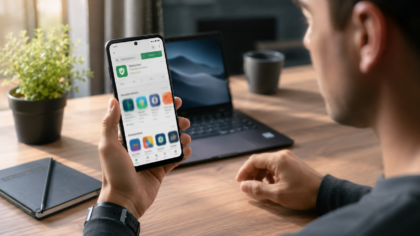
Look at the app listing. Read the description. Check the Data safety section. Review screenshots and user feedback. If the app’s purpose is simple but the privacy details look heavy, slow down.
The app’s Data safety section can show what types of data the developer says the app may collect or share.
This does not replace your own judgment, but it helps you ask better questions.
Does the app collect location? Does it share data with third parties? Does it collect personal information? Does the data collection match the app’s purpose?
If the app is asking for sensitive access and the listing does not explain why, consider choosing another app.
Check Permissions After Installing
You can review and change permissions after installing an app.
On many Android phones, you can open Settings, go to Apps, choose the app and tap Permissions. There, you can see which permissions are allowed or denied.
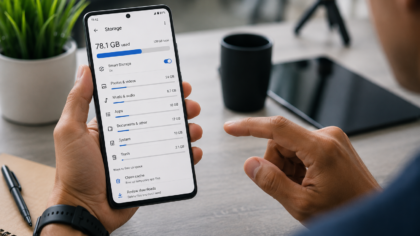
You can also use Permission Manager in privacy settings to check by permission type.
This is useful because it shows all apps with access to a specific permission. For example, you can see which apps can use your camera, microphone, location or contacts.
This is one of the best privacy habits on Android.
Instead of checking one app at a time, you can check one permission at a time and ask: does every app on this list really need this access?
Review Camera and Microphone Access
Camera and microphone permissions deserve special attention.
These permissions can feel normal because many apps use them for useful features. But they are still sensitive.
Check which apps can use your camera. Camera apps, video call apps, scanning apps and social apps may make sense. Random games, simple tools or unknown apps may not.
Then check microphone access. Voice recorders, video call apps and messaging apps may need it. Other apps should have a clear reason.
Some Android phones also include privacy indicators when the camera or microphone is being used. Pay attention to those indicators. If you see one when you do not expect it, check which app is active.
If you are unsure, deny the permission and see whether the app still works for your needs.
Review Location Access
Location is one of the most important permissions to manage.
Some apps need precise location. A navigation app needs it for directions. A ride-hailing or delivery app may need it for pickup and delivery. A weather app may need approximate location for local forecasts.
But not every app needs precise or background location.
If an app only needs your city, approximate location may be enough. If an app only needs location while you are actively using it, do not allow all-the-time access.
Background location should be treated carefully. It lets an app access location even when you are not using it. Some apps genuinely need this, but many do not.
For most apps, “while using the app” is a safer default.
Review File and Media Access
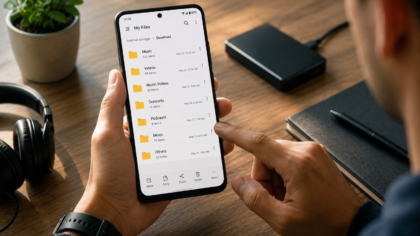
File and media permissions matter because your phone may contain photos, videos, audio, documents and downloads.
A photo editor may need access to images. A music app may need access to audio files. A file manager may need broader file access. A video editor may need videos.
But broad file access should make sense.
If a simple app asks to manage all files, think carefully. Full file access can be powerful. It may be necessary for file managers or backup tools, but it is not needed for many ordinary apps.
When possible, choose limited access or select only the files the app needs.
This helps reduce unnecessary exposure of personal media.
Review Notification Permission
Notifications may not seem as sensitive as camera or location, but they affect your daily attention.
Many apps ask for notification access immediately. Some genuinely need it: messaging, banking alerts, calendar reminders, delivery updates or security warnings.
Others use notifications mainly to pull you back into the app.
Before allowing notifications, ask whether you actually want interruptions from that app.
You can always allow notifications later if you miss them. You can also turn off specific notification categories in settings on many Android phones.
A quieter phone is often a safer and more focused phone.
Be Careful With Accessibility and Special Permissions
Some permissions are more advanced than normal app permissions.
Accessibility access, notification access, install unknown apps, display over other apps and full file management can be powerful. They may be necessary for certain tools, but they can also be abused by harmful apps.
Do not grant special access unless you understand why the app needs it.
For example, an accessibility tool may need Accessibility permission to help users with disabilities or automate certain actions. But a random app asking for Accessibility access should be treated carefully.
Special permissions are not casual settings.
If you do not understand why an app needs one, do not allow it.
Remove Permissions From Apps You No Longer Use
Old apps can keep permissions long after you stop using them.
This is easy to forget. You may install an app for one task, allow permissions and then leave it on your phone for months.
Review unused apps regularly.
If you no longer use an app, uninstall it. If you want to keep it, remove permissions it no longer needs. Some Android devices can automatically pause app activity or remove permissions for unused apps, depending on settings.
This is a simple way to reduce privacy risk.
Your phone should not keep giving access to apps you forgot about.
What to Do If an App Stops Working
Sometimes an app may stop working properly after you deny a permission.
That does not always mean you made the wrong choice. It may mean the app needs that permission for a specific feature.
Open the app and see what is affected.
If you denied camera access, the scanning feature may not work. If you denied location, local results may be less accurate. If you denied file access, the app may not show your media library.
You can allow the permission later if you decide the feature is worth it.
Permissions are not permanent decisions. They are settings you can adjust.
Red Flags to Watch For
Some permission requests should make you cautious.
A simple game asking for contacts may be suspicious. A wallpaper app asking for microphone access may not make sense. A calculator asking for location should have a clear explanation. A flashlight app asking for broad file access is worth questioning.
Also be cautious if an app refuses to work at all unless you grant permissions unrelated to its main purpose.
A trustworthy app should request access when the feature needs it, not demand everything immediately.
If the permission request feels aggressive or confusing, look for another app.
Simple Permission Checklist
Before tapping Allow, ask:
Does this permission match the app’s purpose?
Is the app asking at the right time?
Can I choose limited access?
Can I use “only while using the app”?
Do I trust the developer?
Did I check the Data safety section?
Can I deny it now and allow it later?
Would I be uncomfortable if this app used this access in the background?
This quick checklist can prevent many careless approvals.
You do not need to be afraid of permissions. You just need to be selective.
Final Takeaway
Android app permissions help you control what apps can access on your phone.
Before tapping Allow, think about whether the permission makes sense. Camera, microphone, location, contacts, files and notifications should all match the app’s real purpose.
Use limited access when possible. Review permissions after installing. Check Permission Manager from time to time. Remove access from apps you no longer use. Be especially careful with special permissions like Accessibility, unknown app installs and full file access.
A permission request is not just a pop-up.
It is a decision about trust.
Taking a few seconds to check before you tap Allow can help keep your phone cleaner, safer and more private.
Comments
You can write your views about this story. Comments may be moderated according to site settings.