
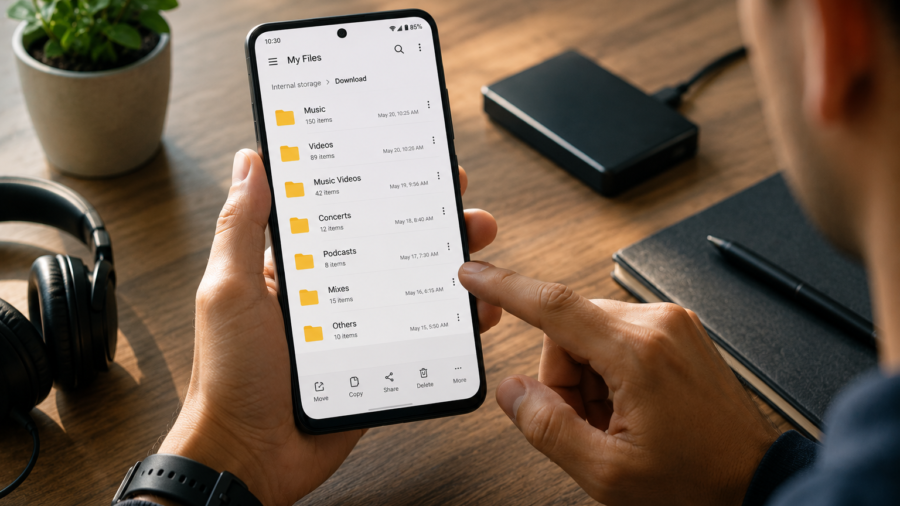
Downloaded music and video files can make an Android phone messy very quickly.
At first, it may be only a few songs, short clips, personal recordings or MP3 files. After a while, your Downloads folder may be full of duplicate tracks, old videos, converted audio, random file names and media you no longer remember saving.
This is frustrating because the files are still on your phone, but they are not easy to use.
A good Android media library should feel simple. You should know where your music is, where your videos are, which files are worth keeping and which ones can be removed safely.
The good news is that you do not need a complicated system.
You only need clear folders, better file names, regular cleanup habits and apps that help you manage authorized media responsibly.
For Android users who want a simple way to manage authorized music, MP3 and video files, Lynka is available on Google Play.
Start With the Downloads Folder
The Downloads folder is usually where media clutter begins.
Many Android apps and browsers save files there by default. Over time, it can collect music files, videos, PDFs, images, old APK files, converted audio and temporary downloads.
Open your file manager and check the Downloads folder first.
Do not delete everything at once. Review the largest and oldest files. If you see music or video files you want to keep, move them into a clearer folder. If you see failed downloads, duplicates or files you no longer need, remove them.
A clean Downloads folder makes the rest of your phone easier to manage.
Create Separate Folders for Music and Video
A simple folder system is the easiest way to stay organized.
Start with basic folders such as:
Music
Videos
Converted MP3
Podcasts
Voice Notes
Travel Media
Old Downloads
You do not need too many folders. Too many categories can become confusing. The goal is to make your media easy to find later.
Music files should not be mixed with random video clips. Converted MP3 files should not be lost inside a crowded Downloads folder. Personal recordings should be separate from songs or entertainment files.
A clear folder system helps both file managers and media player apps show your library more cleanly.
Rename Important Files
File names matter.
A downloaded file may have a long, strange or unclear name. That may not matter if you plan to delete it soon, but it becomes a problem if you want to keep it.
Rename files that you care about.
For music, include the artist or track title if you know it. For personal audio, use the topic and date. For videos, use a short description that makes sense.
Examples:
road-trip-playlist.mp3
study-audio-lesson-04.mp3
family-beach-video.mp4
podcast-episode-offline.mp3
personal-recording-june.mp3
You do not need perfect names. You need useful names.
A file should be understandable when you see it three months later.
Keep Converted MP3 Files Separate
Video to MP3 conversion can be useful when you are working with media you have permission to convert.
But converted files can create clutter fast.
If you convert a video into MP3, you may now have two files: the original video and the new audio file. If you keep both, storage use grows. If you mix them in the same folder, your library becomes harder to understand.
Use a separate folder for converted MP3 files.
After conversion, decide whether you still need the original video. If the video is no longer useful and you have backed up anything important, you may be able to remove it.
Only convert media you have the right to save and modify. Avoid copyrighted, private, DRM-protected or streaming-only content unless the source clearly allows conversion.
Remove Duplicate Music and Video Files
Duplicate files are one of the easiest ways to waste storage.
They often appear when you download the same file twice, receive the same video from different apps, convert a file and keep multiple versions, or move media between folders.
Look for files with similar names, matching durations or repeated thumbnails.
Before deleting duplicates, check which version is better. One video may be higher quality. One MP3 may have better sound. One file may be edited while another is the original.
Keep the version you actually need and remove the unnecessary copy.
A regular duplicate check can free space without sacrificing important media.
Use Playlists Instead of Copying Files
Some users copy the same song into multiple folders for different moods or activities.
That creates clutter.
Instead, use playlists.
A playlist lets you group songs without duplicating the original file. You can create playlists for travel, workouts, study, relaxing, favorites or offline listening.
This is especially useful for local MP3 libraries.
The file stays in one place, while playlists help you organize how you listen. If your music app supports playlists and favorites, use those features instead of making extra copies of the same file.
This keeps storage cleaner and your library easier to manage.
Check Large Video Files First
Videos usually take up much more space than music.
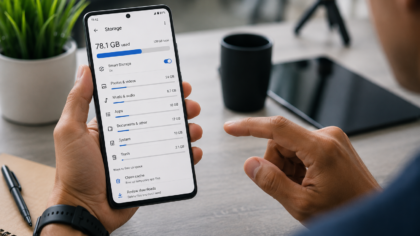
If your Android phone is running low on storage, check large video files before deleting small audio files. A single long video may use more space than hundreds of MP3 tracks.
Look for old recordings, downloaded clips, screen recordings and videos saved from messaging apps.
Ask yourself:
Do I still need this video?
Is it backed up somewhere safe?
Can I delete the local copy?
Is there a shorter or compressed version?
Was this only needed once?
Do not delete personal videos without backup. But if a video is temporary, duplicate or no longer useful, removing it can quickly free space.
Back Up Personal Media Before Cleaning
Some media files can be replaced. Others cannot.
Personal videos, voice recordings, original audio projects, family clips and important files should be backed up before deletion.
You can back them up to a computer, cloud storage, an external drive or another trusted location. After backing up, open a few files to confirm they copied correctly.
Then you can safely remove local copies from your phone if you need space.
Backup is what makes cleanup less stressful.
If you are not sure whether a file matters, move it to backup first instead of deleting it immediately.
Use a Media Player That Supports Local Files
A good media player can make local files easier to use.
Look for an app that supports local audio, MP3 playback, folder browsing, playlists, favorites and recently played media. If it can also help with metadata or file organization, that can be useful for larger libraries.
The app should make your media clearer, not more confusing.
If a music player shows random voice notes, old downloads and unrelated clips, that usually means your folders need cleanup. Organizing files first helps the player work better.
The best media app is the one that matches how you actually store and listen to your files.
Do Not Keep Every Offline File Forever
Offline files are useful, especially when traveling or saving mobile data.
But offline does not have to mean permanent.
If you downloaded a video for one trip, delete it when the trip is over. If you saved an audio file for one project, remove it when you no longer need it. If you converted a file for temporary listening, clean it up later.
Old offline media is one of the main reasons Android storage fills up.
A simple rule works well: if a file was saved for a temporary purpose, review it when that purpose is finished.
Keep Media Use Responsible
Organizing files is not only about storage. It is also about responsible media use.
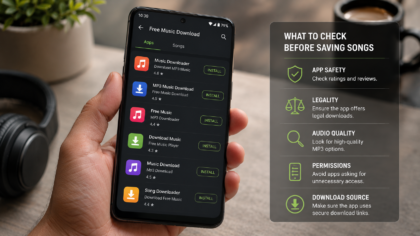
Only download, save, convert or organize music and video files you have permission to use. This may include personal files, creator-approved downloads, public domain media, royalty-free tracks or other authorized content.
Do not use media apps to save copyrighted, private or streaming-only content without permission.
A clean media library should also be a copyright-safe media library.
This protects users, creators and app developers.
Make a Monthly Media Cleanup Habit
The easiest way to stay organized is to clean a little every month.
Check your Downloads folder. Review large videos. Remove duplicate files. Rename important audio. Delete temporary offline media. Back up personal files. Review playlists and favorites.
This does not need to take long.
Ten minutes each month can prevent your phone from turning into a confusing pile of files.
A small routine is better than waiting until your phone is completely full.
Final Takeaway
Organizing downloaded music and video files on Android is mostly about simple habits.
Start with the Downloads folder. Create separate folders for music, videos and converted MP3 files. Rename important files. Use playlists instead of copying songs. Remove duplicates carefully. Check large videos first. Back up personal media before deleting anything.
Apps can help, but the best system is the one you can actually maintain.
When your media library is organized, your phone becomes easier to use. Music is easier to find. Videos are easier to manage. MP3 files are easier to play offline. Storage problems become less stressful.
A clean Android media library does not need to be perfect.
It just needs to make sense to you.
Comments
You can write your views about this story. Comments may be moderated according to site settings.