
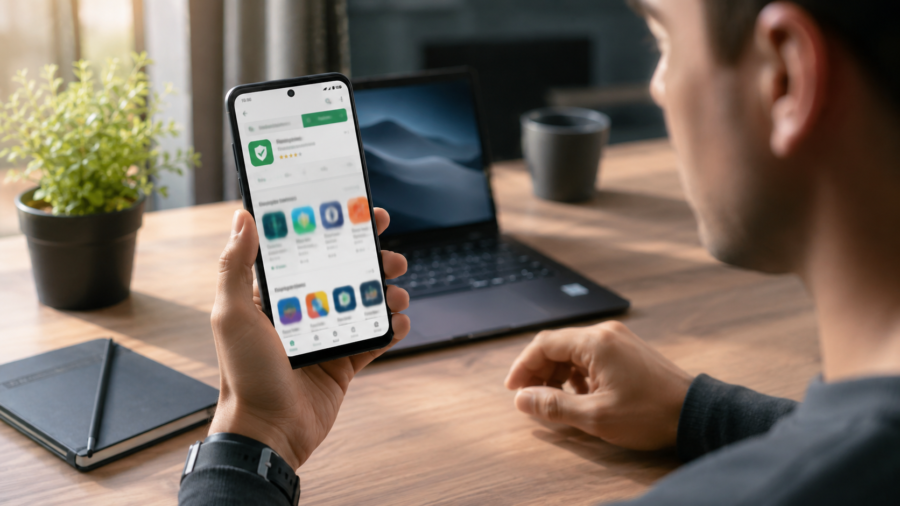
Installing an Android app takes only a few seconds, but checking whether it is safe is worth a little extra time.
Most apps are normal tools, games, media players, shopping apps or everyday utilities. But not every app deserves automatic trust. Some apps ask for too many permissions. Some copy the look of popular apps. Some collect more data than users expect. Others may be poorly maintained, overloaded with ads or unclear about what they actually do.
The goal is not to panic before installing every app.
The goal is to build a simple habit: pause, check the basics and decide whether the app looks trustworthy enough for your phone.
A safe app should have a clear purpose, a real developer, reasonable permissions, transparent data practices and reviews that make sense. If something feels confusing or too aggressive, it is better to slow down before tapping install.
Start With the App’s Purpose
The first question is simple: what is this app supposed to do?
A weather app should show weather. A flashlight app should turn on the light. A music player should play audio files. A photo editor should edit images. The app’s purpose should be easy to understand from the name, screenshots and description.
If the app description is vague, exaggerated or full of strange promises, that is a warning sign.
Be careful with apps that claim to do too much at once. A simple tool that promises to clean your phone, boost your battery, protect your privacy, speed up the internet and unlock hidden features may not be as useful as it sounds.
Good apps usually explain their purpose clearly.
If you cannot understand what the app does after reading the listing, it may not be worth installing.
Check the Developer Name
The developer name matters.
Before installing an Android app, look at who published it. A known company, official brand or established developer is usually easier to evaluate than a random name with no history.
This does not mean small developers are unsafe. Many excellent apps come from independent developers. But you should still check whether the developer looks real.
Tap the developer name if possible. Look at other apps they have published. Do those apps look consistent? Do they have clear descriptions? Do they seem like legitimate products, or do they look like copied, low-quality apps?
Be extra careful if an app appears to copy a famous brand but is published by a developer you do not recognize.
Fake apps often rely on users moving too quickly.
Read the Description Carefully
The app description should explain what the app does in plain language.
It should not be only keywords, hype or repeated phrases. It should not promise impossible results. It should not use confusing wording to hide the real purpose.
Look for practical details.
What features does the app offer? Does it explain how it uses your data? Does it mention subscriptions or ads? Does it say whether certain features require permissions?
A good description does not need to be perfect, but it should feel honest and readable.
If the description looks copied, poorly written, unrelated to the screenshots or too good to be true, be cautious.
Look at Screenshots, but Do Not Trust Them Alone
Screenshots help you understand the app, but they are not proof of safety.
A suspicious app can still have attractive screenshots. A poor app can still look polished in the store listing. That is why screenshots should be only one part of your check.
Compare the screenshots with the description.
Do they show the features promised? Do they look realistic? Do they show a normal app interface, or do they rely on exaggerated claims and fake-looking results?
For utility apps, screenshots should usually show the actual screens users will interact with. If the images are too generic or do not explain anything, the app may be harder to trust.
Check Reviews the Smart Way
Reviews can help, but only if you read them carefully.
Do not look only at the star rating. A high rating may be useful, but it does not tell the whole story. Open the reviews and look for patterns.
Are users saying the app works as expected? Are there repeated complaints about ads, crashes, payments, fake features or unexpected behavior? Are recent reviews positive or negative?
Recent reviews matter because apps change over time.
An app that was good two years ago may be worse now. An app that had problems last month may have been fixed. Look at the newest feedback, not only the overall score.
Also be careful with reviews that look fake. If many reviews use the same strange wording or sound too generic, they may not be helpful.
Check the Number of Downloads, but Do Not Rely on It
Download numbers can be a useful signal, but they are not enough by themselves.
An app with many downloads may have more public feedback and a longer track record. That can make it easier to evaluate. But popular apps can still have privacy concerns, bugs or aggressive ads.
A new app with fewer downloads is not automatically unsafe either. It may simply be new.
Use download numbers as one clue, not the final answer.
The better question is: does the app have enough information for you to make a confident decision?
Review the Data Safety Section
On Google Play, the Data safety section is designed to help users understand what data an app may collect or share and how that data may be handled.
This section can be useful before installing an app.
Look for what types of data the app says it collects. Does it collect location, personal information, photos, contacts, app activity or device identifiers? Does the app say data is shared with third parties? Does it explain whether data is encrypted in transit? Does it offer a way to request data deletion?
The answers should make sense for the app’s purpose.
A navigation app may need location. A camera app may need camera access. A simple calculator should not need your contacts.
The Data safety section is helpful, but users should still think critically. It is one signal, not a guarantee that the app is perfect.
Check App Permissions Before and After Installing
Permissions control what an app can access on your phone.
Some permissions are normal. A camera app needs camera access. A voice recorder needs microphone access. A map app may need location. A music app may need access to audio files.
The problem is when permissions do not match the app’s purpose.
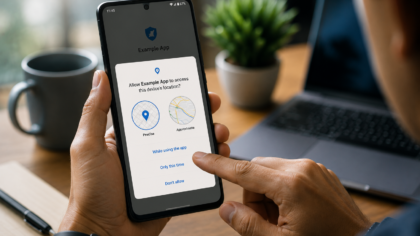
Before installing, check what the app appears to require. After installing, pay attention when it asks for access. Android often asks for sensitive permissions at the moment the app needs them, so you can decide whether to allow or deny.
Be cautious if a simple app asks for sensitive access without a clear reason.
You can also change permissions later in Android settings. This is useful if you allowed something by mistake or no longer want the app to have access.
Be Careful With Apps Outside Google Play
Installing apps from outside Google Play can be riskier.
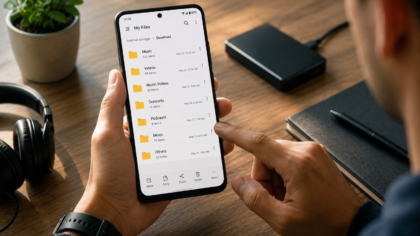
Some users download APK files from websites because they want an app that is not available in their region, an older version or a modified version. This can create problems.
APK files from unknown sources may be changed, bundled with unwanted code or presented as something they are not. Modified apps that promise premium features for free are especially risky.
For most users, the safest choice is to install apps from trusted stores and avoid random download sites.
If you do install from outside Google Play, you need to be much more careful about the source, file authenticity and permissions.
Watch Out for Fake App Copies
Fake apps often try to look like popular apps.
They may use similar icons, similar names or descriptions that include famous brand keywords. The goal is to catch users who are searching quickly and not checking the developer.
Before installing an app that looks like a known brand, check the publisher carefully. Official apps are usually linked to the real company or developer.
Also look for small spelling changes in the app name. Fake apps may use names that are almost identical to the original.
If you are unsure, visit the company’s official website and follow its link to the app store.
Check Ads, Subscriptions and In-App Purchases
A safe app is not only about malware. It is also about transparency.
Some apps are technically safe but frustrating because they hide costs, push aggressive ads or make it difficult to cancel subscriptions.
Before installing, check whether the app contains ads or in-app purchases. Read the subscription terms if there is a paid plan. Look at reviews for complaints about unexpected charges or misleading trial offers.
Free apps can be useful, but they still need a business model. Ads, premium features and subscriptions are not automatically bad. The problem is when they are unclear or manipulative.
A trustworthy app should be honest about how it makes money.
Check Update History
A well-maintained app is usually safer than one that has been abandoned.
Look at when the app was last updated. If an app has not been updated in a long time, it may not work well with newer Android versions. It may also have old bugs or security issues.
This is especially important for apps that handle sensitive data, files, payments, messages, passwords, photos or location.
An app does not need weekly updates to be trustworthy, but long-term neglect can be a warning sign.
Maintenance shows that the developer is still paying attention.
Use Play Protect and Keep Android Updated
Google Play Protect helps scan Android apps for harmful behavior, including apps from outside Google Play.
Users should keep Play Protect enabled and keep their phone updated when updates are available. System updates and security patches can reduce risk from known vulnerabilities.
This does not mean users can ignore app safety checks.
Automatic protections are helpful, but they work best when combined with careful behavior. You should still avoid suspicious apps, strange links and unknown APK files.
Security is strongest when the phone and the user work together.
Remove Apps You No Longer Use
Old apps can become privacy and security clutter.
If you no longer use an app, uninstall it. If you want to keep it but do not need all its access, review its permissions.
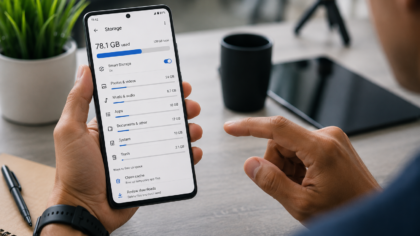
Android can also pause or remove permissions for unused apps in some cases, depending on device settings. This is useful because an app you forgot about should not keep access forever.
A cleaner phone is easier to manage.
Every few months, review installed apps and ask: do I still use this? Do I still trust it? Does it still need these permissions?
If the answer is no, remove it.
Simple Safety Checklist Before Installing
Before installing an Android app, run through a quick mental checklist.
Does the app have a clear purpose?
Is the developer trustworthy?
Do the reviews look real and recent?
Do the permissions make sense?
Does the Data safety section raise concerns?
Are ads, subscriptions or in-app purchases clear?
Has the app been updated recently?
Is it from a trusted source?
You do not need to spend ten minutes on every app. But for apps that ask for sensitive permissions, handle money, access files or manage personal data, extra checking is worth it.
Final Takeaway
Telling whether an Android app is safe does not require expert knowledge.
Start with the basics. Check the developer, description, screenshots, reviews, permissions, Data safety section, update history and business model. Be careful with fake copies, unknown APK files and apps that ask for access they do not need.
Most importantly, trust your common sense.
If a simple app asks for too much, if the listing feels misleading or if reviews mention suspicious behavior, choose another option.
A few careful checks before installing can help you avoid privacy surprises, fake apps and unnecessary risk.
Your phone holds personal data, photos, messages, files and daily habits. It is worth being selective about what you install on it.
Comments
You can write your views about this story. Comments may be moderated according to site settings.