
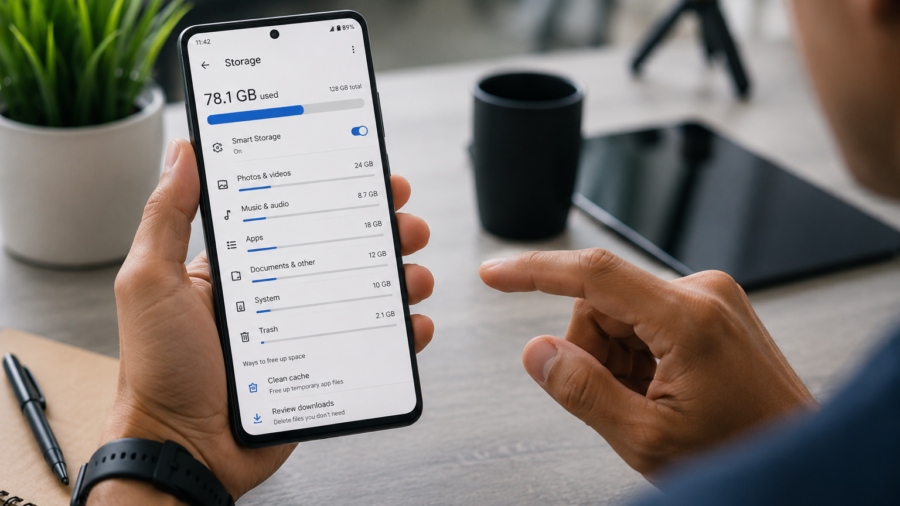
Running out of storage on an Android phone can feel stressful.
One moment, everything works normally. Then your phone warns you that storage is almost full. App updates may fail, new photos may not save, videos may stop recording and downloads may not complete.
The first reaction is often to delete things quickly.
But that can lead to mistakes. You may remove a personal video, an important document, a voice recording, a saved music file or a photo you wanted to keep.
Freeing up space on Android is not about deleting everything. It is about finding what is safe to remove, backing up what matters and cleaning the parts of your phone that usually collect clutter.
A careful cleanup can give your phone more breathing room without putting important files at risk.
Start by Checking What Is Taking Up Space
Before deleting anything, check what is actually using your storage.
Android phones usually show storage categories such as apps, photos, videos, audio, documents, downloads and system files. This helps you understand where the problem is.
If videos are taking most of the space, deleting a few old clips may help more than removing dozens of small files. If apps are the issue, uninstalling unused apps may be more useful than deleting photos. If downloads are large, your Downloads folder may need attention.
This first step matters because random cleanup wastes time.
Storage problems are usually caused by a few large categories, not hundreds of tiny files.
Clean the Downloads Folder First
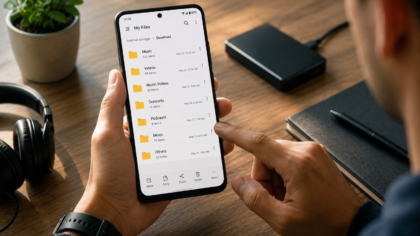
The Downloads folder is often the easiest place to free space safely.
Many files in Downloads were useful once but are no longer needed. This can include old PDFs, duplicate images, temporary videos, installation files, audio clips, documents, screenshots and files saved from websites or messaging apps.
Open your file manager or Files app and review the folder slowly.
Do not select everything at once. Look at file names, dates and sizes. If a file is clearly temporary or no longer useful, delete it. If it looks important, move it to a better folder or back it up first.
A clean Downloads folder makes the whole phone easier to manage.
Find Large Files
Large files are usually the fastest way to recover storage.
A single long video can take more space than hundreds of documents. High-resolution videos, screen recordings, downloaded movies, large ZIP files and old backups can quietly fill a phone.
Use your file manager or Files by Google to look for large files. Sort by size if the option is available.
Then review the biggest files one by one.
Ask yourself:
Do I still need this file?
Is it already backed up?
Can I move it to a computer or cloud storage?
Is it a duplicate?
Was it only needed temporarily?
Do not delete large personal files too quickly. If it is a family video, project file or important recording, back it up before removing it from the phone.
Remove Duplicate Files Carefully
Duplicate files waste storage without adding value.
They often appear when you download the same file more than once, save media from different apps, edit photos, convert audio or move files between folders.
Duplicate photos, videos and MP3 files are common.
If your file manager shows duplicate files, check them before deleting. Sometimes two files look similar but are not exactly the same. One may be higher quality, edited, renamed or stored in a folder you still use.
The safest method is to keep the best version and delete the unnecessary copy.
For music and media files, check the length, file size and quality before removing duplicates.
Review Photos and Videos
Photos and videos are usually one of the biggest storage categories.
Videos are especially heavy. A few long clips can fill a large amount of space. Screenshots and repeated photos can also build up over time.
Start with videos. Delete accidental recordings, blurry clips, repeated takes and files you no longer need.
Then review screenshots. Many people keep screenshots of receipts, messages, maps, social posts or temporary information. After a while, most of them are no longer useful.
For personal photos and videos, backup matters.
Before deleting memories, save them somewhere safe. That may be cloud storage, a computer, an external drive or another trusted backup method.
Do not treat your phone as the only copy of important media.
Back Up Important Files Before Deleting
The safest cleanup habit is simple: back up before deleting.
Some files are easy to replace. Others are not.
Personal photos, family videos, voice recordings, work documents, school files and original media projects should be backed up before removal. Once you know they are safe, deleting the phone copy feels much less risky.
A backup does not need to be complicated.
You can move files to a computer with a USB cable, upload them to cloud storage or save them to an external drive. The best backup method is the one you will actually use regularly.
After backing up, check that the files open correctly before deleting the originals from your phone.
A backup that you never verify is not fully trustworthy.
Uninstall Apps You No Longer Use
Unused apps can take up more space than expected.
Some apps store cache, offline files, videos, documents, maps or downloaded content. Games can be especially large. Social apps and media apps can also build up data over time.
Go through your installed apps and ask whether you still use each one.
If you have not opened an app in months, it may be safe to uninstall. If you are unsure, check whether your account data is backed up or stored online before removing it.
Android may also offer app archiving on some devices. This can remove the app while keeping some personal data, depending on availability and settings.
Uninstalling unused apps is often safer than deleting random personal files.
Clear Cache, but Understand What It Means
Clearing app cache can free space, but it should be done carefully.
Cache is temporary data that apps use to load faster. Clearing cache may remove temporary files without deleting your main account or personal data. Some apps may be slower the next time you open them, but they can rebuild cache over time.
This is different from clearing storage or app data.
Clearing app data can remove settings, logins, downloaded content or local information. That can be risky if you do not understand what will be deleted.
If you are trying to free space safely, start with cache instead of app data.
Only clear app data if you know what the app stores and you are comfortable resetting it.
Check Offline Content Inside Apps
Many apps store offline content.
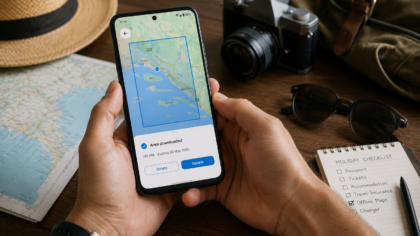
Music apps may store offline songs. Video apps may store downloaded episodes. Map apps may store offline maps. Podcast apps may store old episodes. Messaging apps may store media files.
These files may not always appear clearly in the main Downloads folder.
Open the apps you use often and check their storage settings. Remove offline files you no longer need.
This can free space without deleting the app itself.
For example, deleting old downloaded videos from inside a streaming app may recover much more space than deleting a few documents.
Offline content is useful, but it should not stay forever by default.
Move Media to a Computer or External Storage
If your phone is full but you do not want to delete personal files, moving media is a good option.
Connect your Android phone to a computer with a USB cable and transfer large folders such as DCIM, Videos, Music, Downloads or Documents. After confirming the files copied correctly, you can remove them from your phone.
This is especially useful for older photos and videos that you want to keep but do not need every day.
You can also organize files into folders on your computer by year, trip, project or media type.
A phone should not be the only storage place for everything you have ever saved.
Be Careful With Cleaning Apps
Some cleaning apps promise to make your phone faster, safer and cleaner with one tap.
Be careful.
A good file manager can help you find large files, duplicates and junk files. But aggressive cleaner apps may use scary warnings, confusing ads or unnecessary permissions. Some may delete files too broadly or push features you do not need.
You do not need a dramatic cleaning tool to free up space.
Most Android users can manage storage with system settings, Files by Google, app settings and a simple backup routine.
If you install any cleaning app, check the developer, reviews, permissions and privacy details first.
Create a Simple Monthly Cleanup Routine
The best way to avoid storage panic is to clean a little every month.
Once a month, check:
Downloads
large files
duplicate files
screenshots
old videos
unused apps
offline media
app cache
important backups
This does not need to take long. Ten minutes is often enough.
Small cleanups are safer than emergency cleanups because you are less likely to delete something important in a rush.
A regular habit keeps your phone lighter and easier to use.
What Not to Delete
Some things should not be deleted unless you understand them.
Avoid deleting random system folders. Do not remove app data if you are unsure what it contains. Do not delete personal documents without backup. Do not erase messaging app folders unless you know whether they contain photos, voice notes or important files.
Also be careful with folders created by apps you still use.
If a file manager shows unknown folders, search inside them before deleting. They may contain app media, saved projects or downloads.
When in doubt, move files to backup first instead of permanently deleting them.
Final Takeaway
Freeing up space on Android does not have to mean losing important files.
Start by checking what is using storage. Clean the Downloads folder. Find large files. Remove duplicates carefully. Review photos and videos. Back up personal files before deleting. Uninstall apps you no longer use. Clear cache when needed, but be careful with app data.
The safest cleanup is organized, not rushed.
Your phone should have enough free space for updates, photos, downloads and daily use. But your important files should still be protected.
A few simple habits can keep Android storage under control without turning cleanup into a risky guessing game.

Comments
You can write your views about this story. Comments may be moderated according to site settings.